How to Find Class Schedule in Palm Beach Portal
Learn how to find your class schedule in Palm Beach Portal using SIS Gateway, student dashboard shortcuts, parent view, mobile access, and quick fixes if the schedule is missing.
Your class schedule is one of the most important things inside the Palm Beach Portal.
Without it, it’s easy to forget:
- class periods
- teacher names
- room changes
- elective timing
- lunch block
- special programs
The good news is that the Palm Beach Portal already makes schedule access simple.
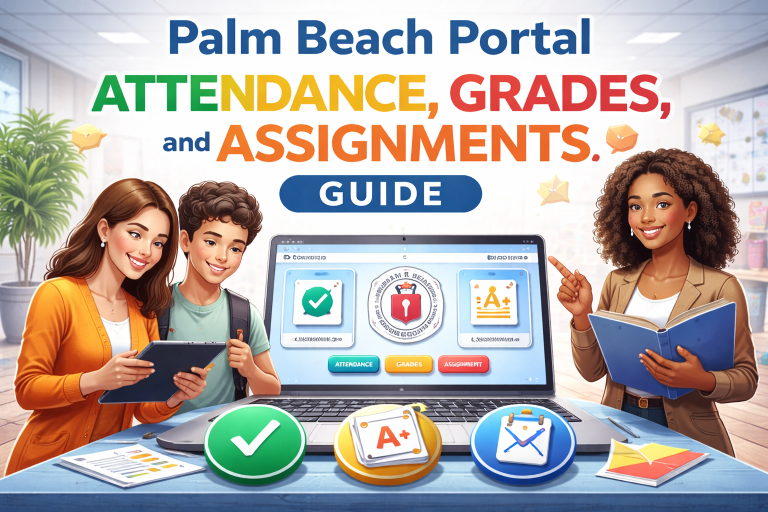
The district confirms that the SIS Gateway gives access to student schedule, grades, discipline, and attendance, and students can open it directly from the SIS Gateway tile inside their portal.
So here’s the easiest way to find it fast.
Open the Palm Beach Portal Dashboard
The fastest method always starts from the palm beach portal dashboard.
Steps:
- go to the palm beach portal login
- sign in with school credentials
- open your dashboard
- click SIS Gateway
- wait for the student homepage
Students access this through mysdpbc.org using the SIS tile.
This is your main path.
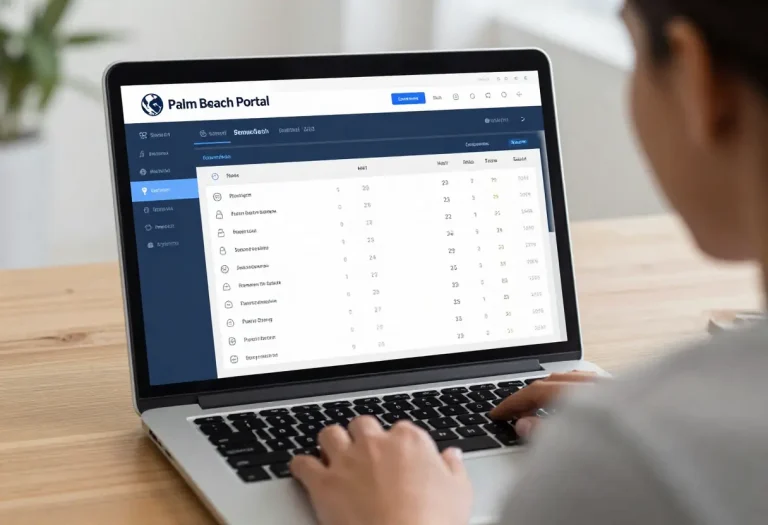
Click the Schedule Section in SIS
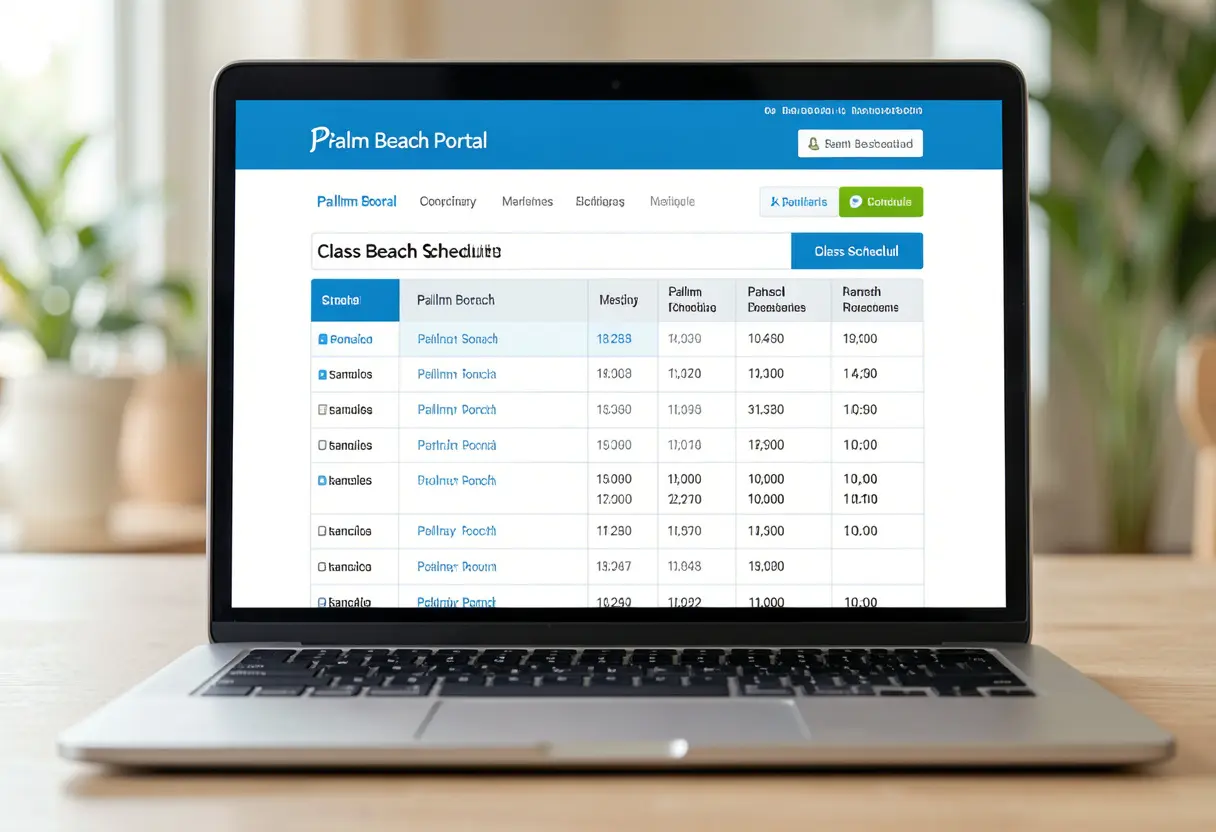
Once inside SIS, look for the Schedule area.
This usually shows:
- class names
- period numbers
- teacher names
- room numbers
- meeting times
- school days
The SIS Parent Gateway officially includes access to schedule information as one of its core features.
For students, this is usually visible on:
- homepage
- left menu
- student info section
- current term view
A lot of students miss it because they go straight to grades first.
Best Way for Students to Find Schedule Fast
Here’s the smartest student workflow.
Quick Student Steps
- login to student portal palm beach
- click SIS Gateway
- open Schedule
- stay on current term
- screenshot it for later
This helps between classes when you need:
- room check
- teacher reminder
- lunch period
- elective location
Honestly, taking one screenshot saves so much time during the first week.
How Parents Can Find Their Child’s Schedule
Parents can also view schedules easily.
Inside the parent login palm beach portal, the SIS system includes schedule access alongside grades and attendance.
Parent Steps
- login to Parent Gateway
- select child profile
- open Schedule
- review periods
- check teacher names
- confirm class sequence
This is very useful for:
- pickup timing
- tutoring planning
- parent-teacher meetings
- checking electives
- monitoring program placement
Use Palm Beach Portal Mobile Access for Schedule Checks
Need a quick class check in the hallway?
The palm beach portal mobile access option works great for quick schedule lookups.
Best mobile uses:
- first day of school
- room reminder
- substitute teacher changes
- checking next period
- lunch block timing
Mobile Tip
For best results:
- use Chrome
- rotate phone landscape
- use desktop mode if needed
- zoom out for full timetable
Smaller screens may hide:
- room numbers
- long teacher names
- special notes
So landscape mode often works best.
How to Find Room Numbers and Teacher Names
The schedule page usually shows more than just subject names.
It often includes:
- classroom number
- building code
- teacher last name
- homeroom
- course level
- time slot
This makes the palm beach school portal very useful during:
- first week confusion
- classroom changes
- counselor updates
- semester transitions
A quick schedule check can stop late arrivals.
Check the Correct Quarter or Semester
Sometimes students think the schedule is missing, but they’re simply on the wrong term.
Always verify:
- current school year
- active semester
- present quarter
- latest timetable
If you are viewing:
- last semester
- old year
- archived term
the class schedule may look wrong.
A tiny filter mistake can make it seem like your electives vanished.
Why the Schedule May Not Be Showing
If your Palm Beach Portal class schedule is not visible, common reasons include:
- wrong term selected
- browser cache
- schedule not released yet
- counselor still updating classes
- mobile hidden columns
- SIS sync delay
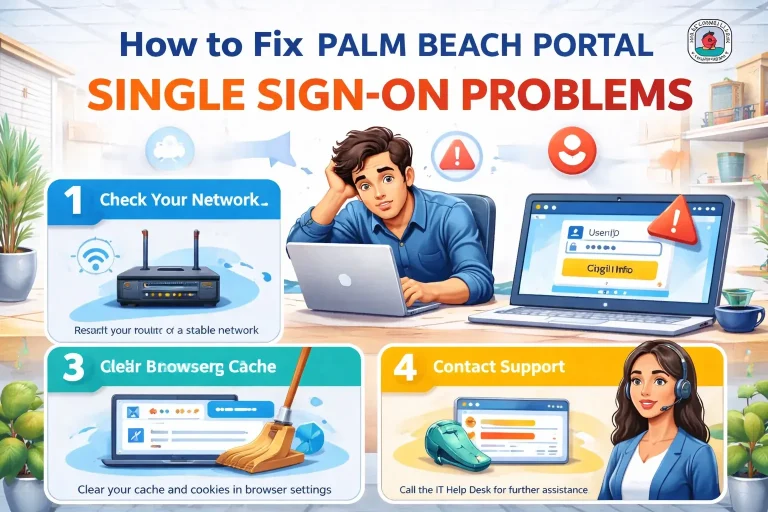
Fast Fixes
- refresh SIS
- sign out and back in
- use Chrome
- switch to laptop
- wait after counselor changes
This usually fixes it quickly.
Best First Week Student Habit
During the first school week, check your schedule:
- before leaving home
- before first period
- after lunch
- after any counselor visit
Schedules can change because of:
- electives
- leveling
- teacher balancing
- room swaps
- program adjustments
A quick portal check prevents walking into the wrong class.
Save Your Schedule for Faster Access
The smartest move?
Save it.
Best ways:
- screenshot phone
- print PDF
- save browser bookmark
- pin SIS tile
- note teacher rooms
This makes the Palm Beach Portal even easier to use every day.
Conclusion
The fastest way to find your class schedule in Palm Beach Portal is to log in, open the SIS Gateway tile, and go straight to the Schedule section.
The best workflow is:
- use SIS first
- stay on current term
- check room numbers
- use mobile for quick checks
- screenshot first-week schedule
- refresh after counselor updates
Once you build this habit, finding classes becomes fast and stress-free.
Want the next article in this SEO series? Send the next title and I’ll write another 1000+ word Google-rankable article in your exact checklist style.
FAQs
Where can students find class schedules in Palm Beach Portal?
Students can log in to the portal, click SIS Gateway, and open the Schedule section.
Can parents see the class schedule too?
Yes, parents can access their child’s schedule through the SIS Parent Gateway.
Why is my class schedule not showing?
Usually because of the wrong semester filter, SIS sync delay, mobile hidden view, or recent counselor changes.
Does mobile show the full class schedule?
Yes, but landscape mode or desktop mode may show room numbers and times more clearly.
Should students screenshot their schedule?
Yes, saving a screenshot is the fastest way to check rooms and periods during school hours.