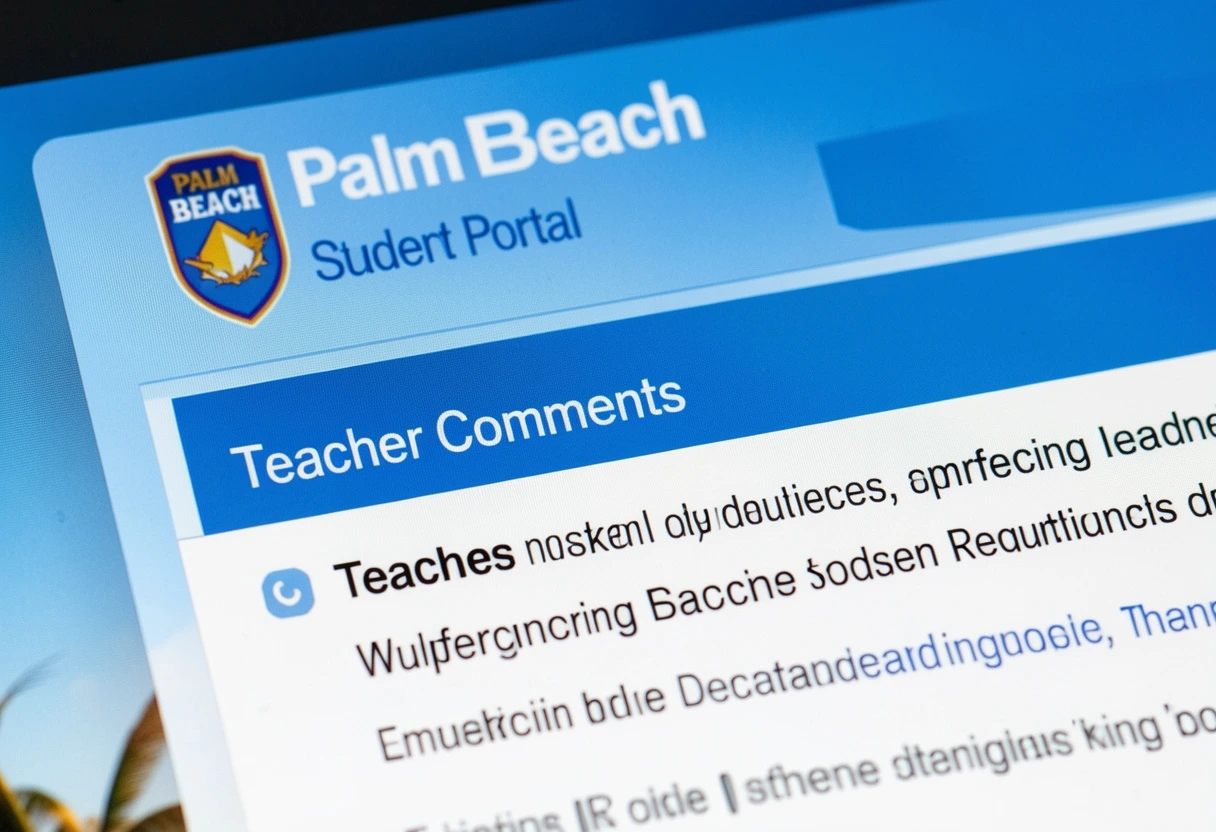
How to Check Teacher Comments in Palm Beach Student Portal
Learn how to check teacher comments in Palm Beach Student Portal using SIS Gateway, grades pages, reporting terms, mobile tips, and easy fixes if comments are not showing.
Teacher comments inside the Palm Beach Student Portal can tell you much more than just a grade.
Sometimes a score alone doesn’t explain what really happened.
A teacher comment can quickly show:
- missing classwork
- behavior notes
- praise for improvement
- test feedback
- late work reminders
- project suggestions
- participation concerns
That’s why students should make checking comments a regular habit inside the Palm Beach Portal.
The student portal system clearly includes a Teacher Comments page where students can view any comment entered by their teacher, and extra comments may also appear on the Grades and Attendance page and Grades History section.
So let’s go through the easiest way to find them.
Log In to the Palm Beach Student Portal First
The first step is opening the Palm Beach Student Portal using your school account.
Students access it by:
- opening mysdpbc.org
- signing in with district login
- opening the dashboard
- clicking the SIS Gateway tile
Palm Beach schools officially confirm that students can access SIS by clicking the SIS Gateway tile inside their district portal.
This is the main route for teacher feedback.
Open the SIS Gateway Dashboard
Once inside the palm beach portal dashboard, go to your student information area.
The SIS system is where students usually check:
- grades
- attendance
- report cards
- GPA
- class schedule
- teacher comments
A lot of students only check grades and completely miss the comment section.
And honestly, that’s where some of the most useful academic feedback lives.
Click the Teacher Comments Section
Now look for the Teacher Comments option in the navigation menu.
The student portal documentation confirms that students can simply click Teacher Comments from the navigation menu, and the page will display all comments entered by teachers.
This page usually includes:
- reporting term
- course number
- class name
- teacher name
- comment section
- current or dropped classes
This makes it easy to match comments with the correct subject.
For example:
- Math teacher note
- English essay feedback
- science lab behavior
- social studies participation
Everything stays organized by class.
Check the Correct Reporting Term
One of the biggest mistakes students make is checking the wrong term.
The Teacher Comments page includes a Reporting Term dropdown, which by default shows the current term. Students can switch to another grading term if needed.
Always verify:
- current quarter
- previous quarter
- semester 1
- semester 2
- current school year
If you are viewing an old term, newer comments may look missing.
A tiny filter mistake can make it seem like the teacher never left feedback.
Pretty frustrating, right?
Read Comments Class by Class
The best way to use teacher comments is subject by subject.
For each course, check:
- class performance feedback
- assignment quality notes
- test improvement advice
- missing work reminders
- behavior observations
- praise comments
This helps students understand the reason behind the grade, not just the number.
For example, a B grade with a comment like:
- great participation but late homework submissions
gives much more useful direction than the grade alone.
That’s where real improvement starts.
Also Check Comments in the Grades Page
A lot of students don’t realize that teacher notes may also appear outside the main comments page.
The portal documentation specifically says additional teacher comments may be found on the Grades and Attendance page and Grades History page.
So after checking the main comments section, also open:
- Grades
- Grade History
- assignment rows
- report card summary
- quarter averages
This helps catch:
- assignment-specific notes
- final grade comments
- progress updates
- quarter-end remarks
Sometimes the most important comment is attached directly to the grade itself.
Use Teacher Comments to Improve Grades
This is where smart students get ahead.
Instead of only worrying about scores, use comments as a study roadmap.
Look for patterns like:
- weak quiz preparation
- incomplete assignments
- participation concerns
- repeated late work
- writing detail issues
- math steps missing
Then act on them.
Smart Student Routine
- read comment
- identify repeated issue
- fix the habit
- monitor next grade
- compare teacher feedback
- improve before next quarter
This turns the Palm Beach Student Portal into a real improvement tool.
How to Check Teacher Comments on Mobile
The palm beach portal mobile access version also works for comments.
It’s perfect for:
- quick hallway checks
- after-school review
- before parent meeting
- bus ride home
- checking teacher praise fast
Best Mobile Tips
- use Chrome
- rotate phone landscape
- use desktop mode if needed
- zoom out to view full table
- tap class rows carefully
Some phones hide:
- long comments
- teacher names
- full course titles
So landscape mode often helps a lot.
Why Teacher Comments Might Not Show
If the Palm Beach Student Portal teacher comments section looks blank, don’t panic.
The official documentation explains that if the comment column is blank, there are no teacher comments entered.
Other reasons include:
- wrong reporting term
- current class selected only
- teacher has not entered comments yet
- dropped class hidden
- browser cache issue
- mobile column hidden
Fast Fixes
- switch reporting term
- click current classes
- show dropped classes
- refresh SIS
- use Chrome
- clear cache
Usually the fix is simple.
Show Dropped Classes for Older Comments
This is a very useful feature.
The Teacher Comments page includes:
- Show dropped classes
- Show only current classes
This matters when:
- class schedule changed
- electives moved
- semester switched
- counselor updated placement
- old course feedback needed
If a teacher comment seems missing after a class switch, enable Show dropped classes.
Many old semester comments live there.
Best Weekly Habit for Students
To stay ahead academically, students should check comments every week.
Weekly Student Workflow
- open SIS every Friday
- review all teacher comments
- compare with missing assignments
- note repeated concerns
- fix one weak habit
- recheck next week
This helps before:
- progress reports
- quarter grades
- parent conferences
- counselor meetings
- final exams
A 2-minute weekly review can prevent major grade drops.
Use Comments Before Contacting the Teacher
Before emailing a teacher, always read the comment section first.
Many answers are already there:
- why points were lost
- why participation dropped
- why assignment was late
- what needs revision
- what skill needs work
This saves time and helps students ask smarter questions.
Instead of asking:
“Why did I get this grade?”
you can ask:
“I saw your note about missing work details—can I revise the conclusion section?”
That gets much better responses.
How Parents Can Use the Same Feedback
Parents linked through the Palm Beach Parent Gateway can also benefit from these comments because the same SIS ecosystem shares grade and teacher information.
This helps families:
- discuss weak subjects
- track behavior notes
- spot repeated late work
- prepare for conferences
- support homework routines
Teacher comments often explain grade drops faster than students do.
And yes, parents notice that quickly.
Best SEO Tip for Students: Turn Comments Into Action
The real value of teacher comments is action.
Use every comment to improve:
- homework timing
- study methods
- writing clarity
- class participation
- quiz review habits
- assignment completion
Students who regularly use Palm Beach Student Portal teacher comments often improve faster because they understand exactly what teachers expect.
That feedback loop matters.
Conclusion
The easiest way to check teacher comments in Palm Beach Student Portal is to log into mysdpbc.org, open the SIS Gateway tile, click Teacher Comments, and review feedback by reporting term and class.
The smartest workflow is:
- check current term
- review every subject
- also inspect Grades and History pages
- show dropped classes
- use mobile in landscape mode
- turn comments into study improvements
- repeat weekly
When students build this habit, grades improve because they are finally using teacher feedback the way it was meant to be used.
Want the next 1500+ word SEO-optimized Palm Beach Portal article? Send the next title and I’ll write it in the same Google rankable on-page SEO style.
FAQs
Where do students find teacher comments in Palm Beach Student Portal?
Students can log into SIS Gateway and click Teacher Comments from the navigation menu.
Why is the teacher comment section blank?
If the comment column is blank, the teacher has not entered any feedback yet.
Can students check teacher comments for old classes?
Yes, use Show dropped classes to view feedback from previous courses.
Do teacher comments also appear in grades?
Yes, additional feedback may also appear in Grades and Attendance and Grades History.
How often should students check teacher comments?
A weekly check is the best habit, especially before progress reports and quarter finals.