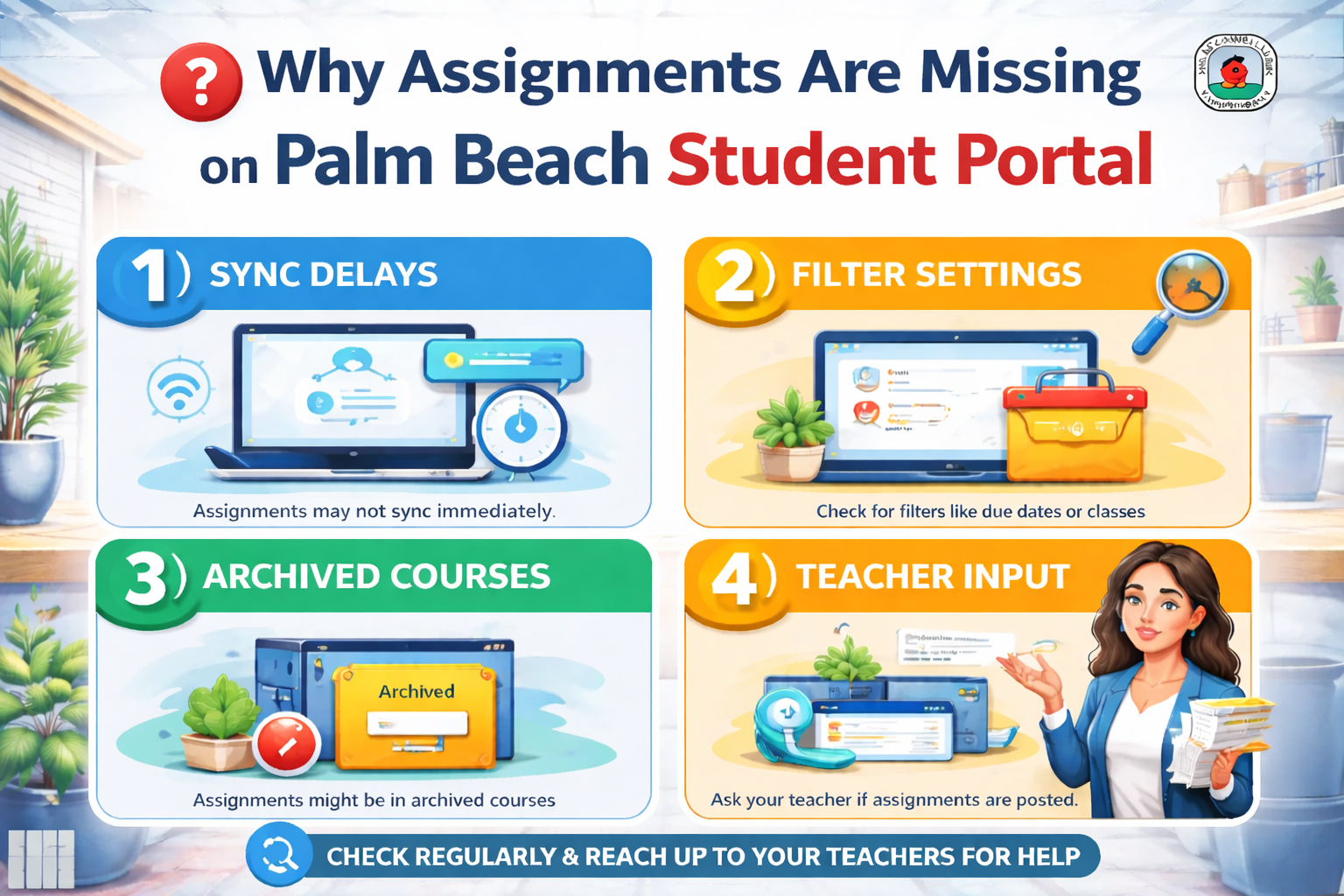
Why Assignments Are Missing on Palm Beach Student Portal
Wondering why assignments are missing on the Palm Beach Student Portal? Learn the most common reasons, quick fixes, SIS gradebook issues, and how students can find hidden homework fast.
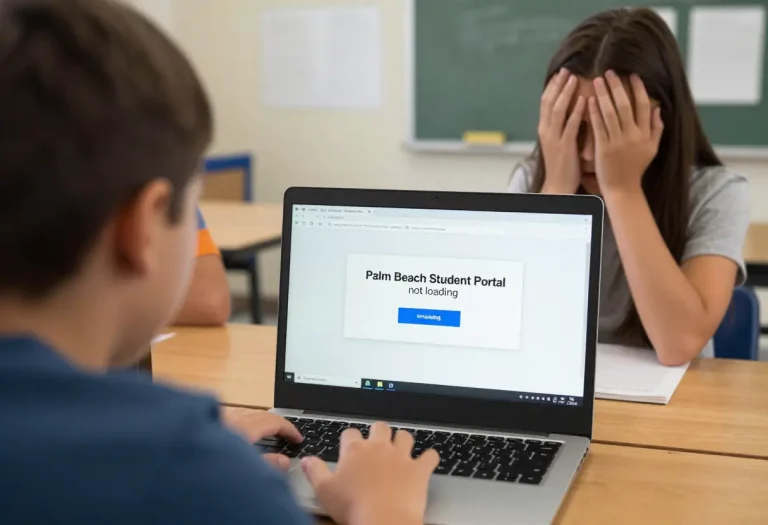
It can feel stressful when you open the Palm Beach Student Portal and suddenly your homework, quiz, or project is nowhere to be found.
One second it was there. The next time you check, it’s missing.
The good news? In most cases, the assignment is not actually gone.
Usually, it’s caused by a simple reason like the wrong class view, teacher grading delay, marking-period filters, or an assignment status like NG or *Exc in SIS. The district’s SIS FAQ confirms that NG means “No Grade” (the teacher is still grading) and *Exc means “Excused.”
So before worrying, let’s go through the real reasons.
The Assignment Is in the Wrong Class Section
This is one of the most common reasons.
Students sometimes open:
- the wrong subject
- another period
- an old semester
- the wrong teacher section
- archived class view
Inside the student portal palm beach, assignments are tied to the exact course section.
So if you’re checking English Period 2, but the teacher posted it in English Honors Period 4, it may look like it disappeared.
A tiny class mix-up can waste a lot of time, right?
The Teacher Has Not Finished Grading Yet
Sometimes the assignment is there, but it does not show as expected.
The Palm Beach SIS FAQ clearly explains that NG = No Grade, which means the teacher has posted the assignment but is still grading it.
That means students may think it’s missing when it’s actually:
- submitted
- pending review
- waiting for score
- not released yet
- hidden until grading finishes
This is very common after quizzes and tests.
The Assignment Is Showing as Excused
Another common reason is the *Exc status.
The district explains this means the student is officially excused from the assignment, usually because of an approved absence.
So if the assignment seems missing after:
- sick leave
- doctor note
- field trip
- excused absence
- school activity
check whether it’s listed as *Exc instead of missing.
That changes everything.
Wrong Marking Period or Date Filter
A lot of students forget to check the correct grading period.
If the portal is set to:
- old quarter
- previous semester
- wrong term
- past marking period
new assignments may not appear.
Inside the palm beach portal dashboard, always confirm you are viewing:
- current quarter
- active class term
- present school year
- latest teacher updates
The SIS portal page shows the blue header includes the current school year and marking period, so this is the first thing to verify.
This simple filter issue causes tons of confusion.
The Assignment Is on the Far Right Side of the Gradebook
Many students miss this.
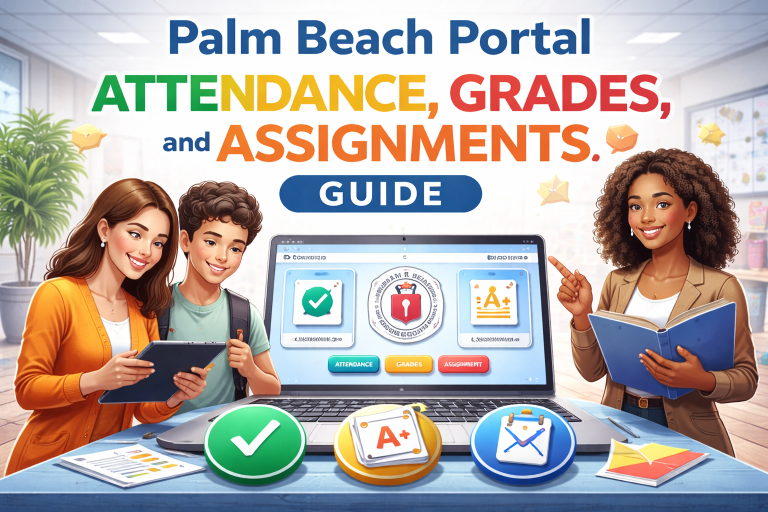
The district FAQ notes that once you click a class grade, the far right side of each assignment row shows:
- assigned date
- due date
- graded date
On smaller laptop screens or mobile devices, students may not scroll far enough horizontally.
So the task looks missing, but it’s actually just off-screen.
Honestly, this happens more than people expect.
Mobile View Is Hiding Some Assignment Details
The palm beach portal mobile access works well for quick checks, but some SIS details are easier to miss on small screens.
The portal help page also says some applications inside the portal are not optimized for smaller devices.
That means on mobile:
- assignment columns may hide
- due dates may collapse
- rows may require sideways scrolling
- filters may be tucked into menus
Quick Fix
Try:
- desktop mode
- tablet
- laptop
- landscape mode
- Chrome browser
This often makes the “missing” assignment instantly appear.
Browser Cache Is Showing an Old SIS View
Sometimes the Palm Beach Portal is simply showing old cached data.
This makes students think:
- homework vanished
- score removed
- teacher deleted work
- portal is broken
But it’s really just stale browser cache.
Fast Fix
- clear cache
- refresh page
- reopen SIS Gateway
- use Chrome
- sign in again
This is especially helpful if the palm beach portal login page was left open overnight.
The Teacher Posted It in Another Learning App
Some teachers use:
- SIS gradebook
- Google Classroom
- Canvas
- external learning apps
- district LMS tools
So the assignment may not appear immediately in the palm beach school portal.
Instead, the score may sync later.
This is why students should always check:
- SIS
- class LMS
- teacher announcement
- assignment tab
- email update
A missing assignment is often just living in another connected tool.
The Assignment Was Removed or Replaced
Sometimes teachers update their plans.
They may:
- replace old homework
- merge two assignments
- rename project
- remove duplicate post
- reopen a revised task
This can make it look like your original assignment disappeared.
In reality, it may now be under:
- new title
- combined grade row
- updated due date
- teacher note
Always scan recent rows before assuming it’s gone.
What Students Should Do First
Here’s the smartest troubleshooting order.
Fast Student Checklist
- open correct class
- confirm marking period
- scroll right in gradebook
- check NG or *Exc
- switch to desktop
- clear cache
- ask teacher if recently posted
This workflow solves most Palm Beach Student Portal missing assignment issues.
When to Contact the Teacher
If the assignment still cannot be found after all checks:
- message teacher
- ask class period
- mention due date
- send screenshot
- ask if it was moved
A clear question gets a faster answer than saying “it disappeared.”
Conclusion
If assignments are missing on the Palm Beach Student Portal, the reason is usually simple:
- wrong class section
- teacher still grading
- NG status
- *Exc excused work
- wrong marking period
- mobile hidden columns
- browser cache
- reassigned task
The best fix is to first check SIS Gateway, confirm the current grading term, scroll the full assignment row, and switch to desktop if needed.
Most of the time, the assignment isn’t gone at all—it’s just hidden by filters, timing, or screen layout.
Want the next article in this SEO series? Send the next title and I’ll write another 1000+ word Google-rankable article in your exact checklist style.
FAQs
Why are assignments not showing in Palm Beach Student Portal?
Usually because of the wrong class, wrong marking period, mobile hidden columns, or the teacher still grading.
What does NG mean if my assignment seems missing?
NG means No Grade, which means the teacher posted it but has not finished grading yet.
Why can’t I see assignment due dates on mobile?
Mobile screens may hide the far-right columns where assigned and due dates appear.
Can excused absences hide assignments?
Yes, excused work may appear as *Exc, which can make it seem like the assignment disappeared.
Should I ask the teacher if the assignment is still missing?
Yes, after checking class filters, grading period, and SIS rows, the teacher can confirm whether it was moved, renamed, or still pending.
You have not enough Humanizer words left. Upgrade your Surfer plan.