How to Add Multiple Students in Palm Beach Parent Portal
Learn how to add multiple students in Palm Beach Parent Portal using one parent account with school PINs, step-by-step setup, child switching, and easy fixes for linking errors.
If you have more than one child in Palm Beach schools, managing separate accounts can become a headache fast.
The good news?
The Palm Beach Parent Portal lets parents add multiple students to one existing Gateway account, so you can check:
- grades
- attendance
- schedules
- assignments
- report cards
- teacher updates
all from a single login.
The district officially provides an “Add Another Student to my Gateway Account” option, and yes, a school security PIN is required for each child.
So let’s walk through the easiest method.
Log In to Your Existing Parent Gateway Account
First, open the parent login palm beach portal and sign in with your current parent account.
This should be the same account you already use for your first child.
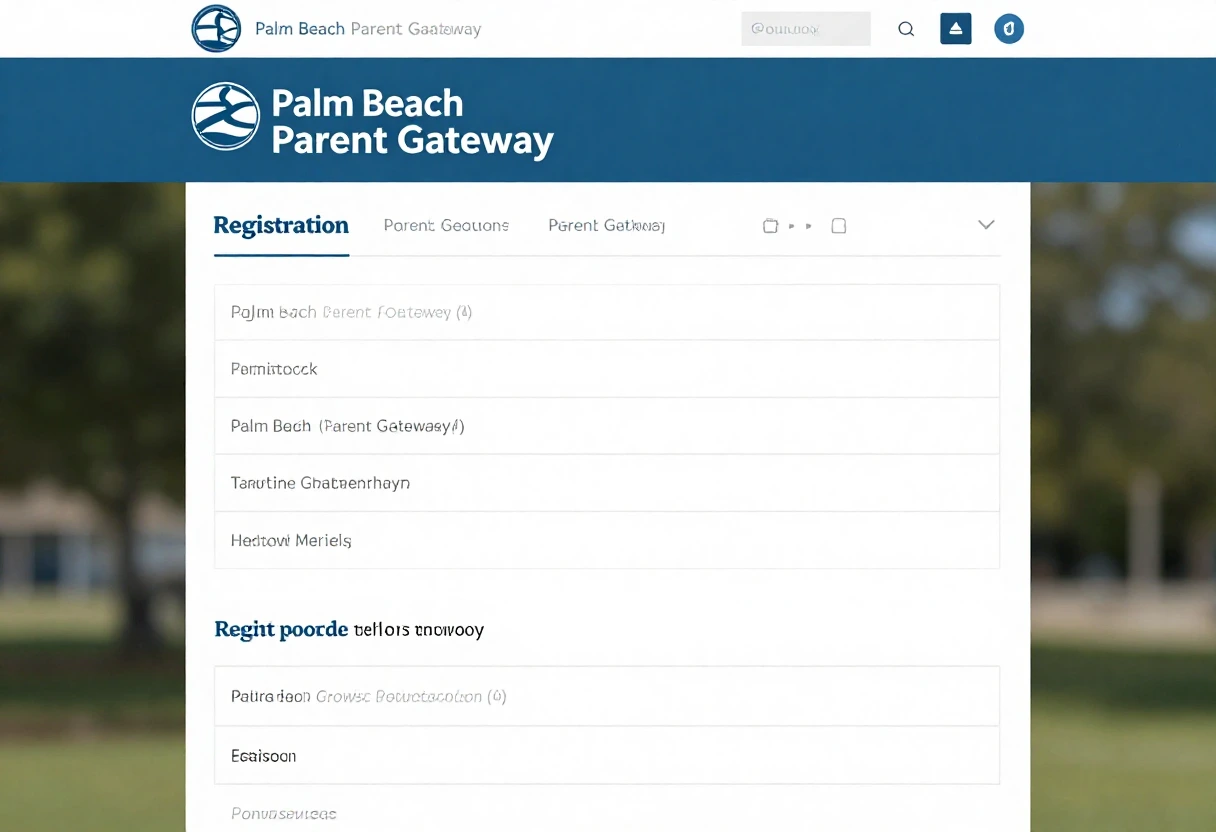
Once inside, go to the Gateway page where you’ll see the option:
- Add Another Student to my Gateway Account
This is the correct path for families with siblings.
Get a Security PIN for Each Additional Student
Before adding another child, make sure you have the school-issued PIN for that student.
Each child needs their own PIN from:
- school front office
- registrar
- Gateway Manager
- grade-level office
- counselor
The district clearly notes Security PIN Required and says No PIN? Contact the school.
This step is required every time you link a new student.
Click Add Another Student to my Gateway Account
Now click the official option:
- Add Another Student to my Gateway Account
The district’s support guide says parents can start by clicking either:
- LOG IN
- or the Add Another Student link directly
This opens the student linking screen.
Pretty easy so far, right?
Enter the Student Information and PIN
Now type the required child details.
This usually includes:
- student first name
- student last name
- student ID details
- date of birth
- school PIN
- relationship to child
The official Palm Beach guide confirms you must enter the required information and PIN provided by your child’s school, then click Add Student.
Once correct, the child’s name will appear on screen.
Repeat the Same Process for More Children
Have 3 kids? 4 kids?
No problem.
The district’s Adding Students to a Currently Registered Account guide specifically says to click:
- Add Another Child
and repeat the same process for every additional student.
So your workflow becomes:
Quick Multi-Student Steps
- login parent account
- click Add Another Student
- enter child PIN
- click Add Student
- repeat for each sibling
- click I am FINISHED
This keeps everything under one login.
How to Switch Between Students After Adding
Once linked, all children stay inside the same Palm Beach Parent Portal account.
Now parents can switch between:
- elementary child
- middle school child
- high school child
- twins
- multiple siblings
from the same dashboard.
This makes it easy to compare:
- attendance
- grades
- missing work
- tardies
- report cards
without logging out again and again.
Huge time saver for busy families.
Best Parent Workflow for Multiple Students
The smartest daily routine is to check all children together.
Daily Routine
- open attendance for each child
- review missing assignments
- compare grade changes
- check tardies
- review teacher comments
Weekly Routine
- compare report card trends
- watch repeated absences
- track GPA growth
- check schedule changes
- prepare for parent-teacher meetings
One account makes family school management much smoother.
Common Problems When Adding More Students
PIN Not Working
Usually caused by:
- wrong child PIN
- extra spaces
- old PIN
- wrong date of birth
- school office typo
Student Not Showing After Add
Try:
- refresh dashboard
- sign out and back in
- use Chrome
- clear cache
Only One Child Appears
This usually means:
- I am FINISHED was clicked too early
- second PIN process not completed
- page session timed out
The district recommends Google Chrome or Firefox for smoother Gateway use.
Do You Need to Re-Add Students Every Year?
Good news: No.
The Palm Beach FAQ confirms that once your parent account is attached using the school PIN, it stays active until the student graduates.
So once all siblings are linked:
- same login every year
- school changes update automatically
- middle to high school rollover works
- no new yearly setup needed
That’s super convenient.
When to Contact the School
Contact the school if:
- PIN fails repeatedly
- wrong child profile linked
- sibling missing from dashboard
- access denied
- custody alert blocks account
The school Gateway Manager can quickly verify:
- guardian record
- PIN status
- student enrollment
- family linking permissions
Usually this gets fixed fast.
Conclusion
The fastest way to add multiple students in Palm Beach Parent Portal is to log into your existing parent account, click Add Another Student to my Gateway Account, enter each child’s school PIN, and repeat the process for every sibling.
The smartest workflow is:
- keep one parent login
- get PIN for each child
- add every sibling
- switch between students daily
- compare attendance and grades weekly
- keep all family school data in one place
Once setup is complete, parents can monitor the entire family’s school progress from one simple dashboard.
Want the next article in this SEO series? Send the next title and I’ll write another 1000+ word Google-rankable article in your exact checklist style.
FAQs
Can parents add multiple students to one Palm Beach Parent Portal account?
Yes, the district provides an Add Another Student to my Gateway Account option.
Do I need a PIN for each child?
Yes, every student needs their own school-issued security PIN.
Do I need separate parent accounts for each child?
No, all siblings can be managed from one parent account.
Do students need to be added again every year?
No, once linked, the account remains active until graduation.
Which browser is best for adding multiple students?
Google Chrome or Firefox is officially recommended.