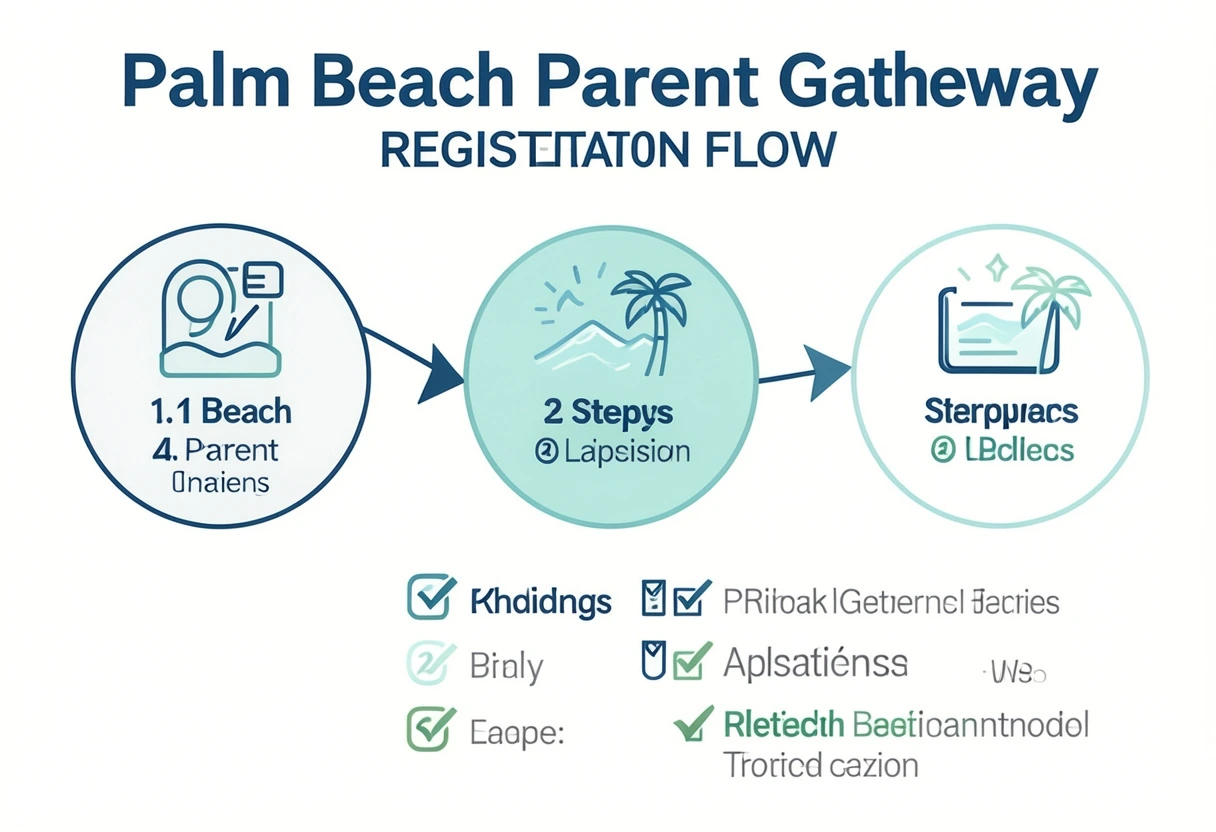
Palm Beach Parent Gateway Registration Step-by-Step Guide
Learn the complete Palm Beach Parent Gateway registration step-by-step guide with PIN setup, account creation, adding students, browser tips, and easy fixes for registration issues.
The Palm Beach Parent Gateway is one of the most useful tools for parents.
Once registered, you can monitor:
- grades
- attendance
- class schedule
- assignments
- teacher contact
- discipline updates
all from one dashboard.
The School District of Palm Beach County confirms parents can create a new Parent/Guardian account, but a security PIN from the school is required.
So let’s go through the full registration process step by step.
Step 1: Get the Security PIN from the School
Before starting, make sure you have your child’s Parent Gateway PIN.
This PIN is usually provided by:
- school front office
- grade-level office
- Gateway Manager
- counselor office
- school registration team
The district clearly states: No PIN? Contact the school.
Without this PIN, registration cannot be completed.
So this is always the first step.
Step 2: Open the Official Parent Gateway Page
Next, go to the official SIS Parent Gateway page.
The district’s registration page includes a clear option for:
- Create a New Parent/Guardian Account
and also recommends using:
- Google Chrome
- Firefox
This matters because older browsers may create form errors.
So for the smoothest setup, use Chrome on laptop or desktop.
Step 3: Click “Create a New Parent/Guardian Account”
On the registration page, click:
- Create a New Parent/Guardian Account
The official Parent Gateway guide confirms that new users should click the Register button first.
This opens the account creation form.
Pretty simple so far, right?
Step 4: Enter Your Parent Information
Now fill in your own details.
Typical fields include:
- parent full name
- email address
- username
- password
- phone number
- security question
The district’s guide says parents must enter all required fields with their own information and then click Submit.
Best Tip
Use an email you check daily.
This helps for:
- password reset
- grade alerts
- teacher contact
- attendance notices
- emergency updates
A good email makes the whole parent login palm beach portal easier later.
Step 5: Link Your Child Using the PIN
This is the most important part.
After creating the parent account, the system will ask for:
- student ID details
- child name
- school-linked information
- security PIN
Enter the exact PIN given by the school.
The district confirms that once you attach your account with the PIN, it remains active until the student graduates.
That means this is usually a one-time setup.
Step 6: Finish Registration and Open Dashboard
After the PIN is verified, your Palm Beach Parent Gateway dashboard will open.
Now you can instantly access:
- attendance
- grades
- assignments
- teacher list
- class schedule
- discipline
This is where the palm beach portal dashboard becomes your daily parent tool.
Honestly, once this part is done, school tracking gets much easier.
How to Add Another Student to the Same Account
If you have multiple children, don’t create another account.
Instead use:
- Add Another Student to my Gateway Account
The district officially provides this option on the same registration page.
You’ll need:
- second child PIN
- correct student details
- same parent login
This lets parents monitor all children from one place.
Huge time saver for families.
Best Browser Tips for Registration
The district specifically recommends:
- Google Chrome
- Firefox
Extra Speed Tips
- avoid mobile for first setup
- use laptop
- disable ad blockers
- keep only one tab open
- clear cache if form freezes
These small things prevent most registration errors.
Common Registration Problems and Fixes
PIN Not Working
Possible reasons:
- wrong student selected
- extra spaces entered
- old PIN typo
- school gave updated PIN
Fix:
- retype carefully
- confirm with school office
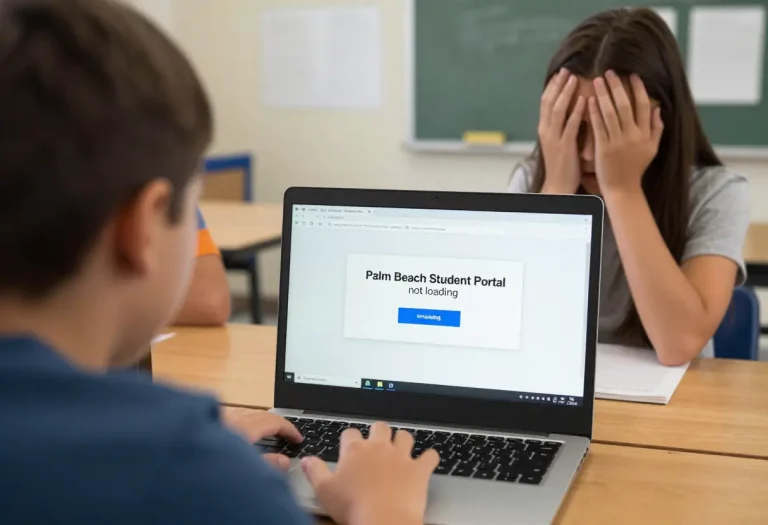
Page Not Loading
Possible reasons:
- browser cache
- old Safari
- mobile issue
- weak Wi-Fi
Fix:
- switch to Chrome
- refresh page
- try laptop
No Access After Registration
If your child has a custody alert, the district notes that school verification may be required before access is granted.
This is normal for account protection.
Best Parent Routine After Registration
Once your account is live, the best habit is:
Daily Quick Check
- attendance
- grades
- missing assignments
- tardies
- teacher messages
Weekly Deep Check
- report card trends
- repeated absences
- class average drops
- teacher communication
- multi-child comparison
This turns the Palm Beach Parent Gateway into a powerful family school-management system.
When to Contact the School
If registration still fails, contact:
- school Gateway Manager
- front office
- registrar
- grade-level counselor
The district specifically says to contact your School’s Gateway Manager for extra help.
Ask them to verify:
- PIN
- guardian record
- custody status
- linked student info
- email mismatch
Usually they can fix it quickly.
Conclusion
The Palm Beach Parent Gateway registration process is simple when you follow the right order:
- get school PIN
- open official Gateway page
- create parent account
- enter your details
- attach child using PIN
- open dashboard
- add more children if needed
The smartest setup tips are:
- use Chrome
- use laptop
- double-check PIN
- use active email
- save login details safely
Once registered, parents get real-time access to everything that matters in school life.
Want the next article in this SEO series? Send the next title and I’ll write another 1000+ word Google-rankable article in your exact checklist style.
FAQs
Do parents need a PIN for Palm Beach Parent Gateway registration?
Yes, the school must provide a security PIN before registration.
Can parents add multiple students to one account?
Yes, the system includes an Add Another Student option.
Which browser works best for registration?
Google Chrome or Firefox is officially recommended.
Do parents need a new PIN every year?
No, once linked, the account stays active until the student graduates.
Who should parents contact if registration fails?
Contact the school’s Gateway Manager or front office for PIN and account help.