Palm Beach Portal Attendance, Grades, and Assignments Guide
Learn how to use the Palm Beach Portal to check attendance, grades, and assignments with easy SIS Gateway steps for students, parents, and staff.
The Palm Beach Portal makes it easy for students, parents, and staff to track the three things that matter most every school day: attendance, grades, and assignments.
Instead of waiting for report cards or teacher emails, everything is available in real time through the palm beach portal dashboard and SIS Gateway.
The School District of Palm Beach County confirms that the SIS Gateway gives timely access to schedule, grades, discipline, and attendance, while students can open the SIS Gateway tile directly from their district portal.
So if you want one clear guide for checking missing work, absences, scores, and due dates, this article covers it all.
How to Check Attendance in the Palm Beach Portal
Attendance is one of the first things families should monitor.
A missed class today can quickly turn into a grade issue tomorrow.
For Students
Students can log in to the student portal palm beach, open the SIS Gateway tile, and review:
- present days
- excused absences
- unexcused absences
- tardies
- class attendance details
The SIS helpful guide shows that the Absences section is available from the left-side menu for fast access.
This makes it easy to catch mistakes early.
For Parents
Inside the parent login palm beach portal, the homepage displays:
- absences
- tardies
- excused days
- teacher list
- class performance
The parent FAQ also confirms the homepage shows absences and tardies right next to grades.
That instant visibility helps parents act fast.
How to View Grades in the Palm Beach Portal
Grades are one of the most-used features inside the palm beach school portal.
Open the Grades Section
After logging into the palm beach portal login, open:
- SIS Gateway
- student profile
- Grades
The official parent guide explains that clicking Grades opens the assignments and grades screen for each specific course.
Here you can see:
- current percentages
- test scores
- quizzes
- project marks
- assignment scores
- teacher comments
This makes progress tracking much easier.
View All Years and Course History
If you want older results, the SIS hints page explains you can:
- click Grades
- check Show All Years
- update results
This helps students review past semesters and parents track long-term progress.
Pretty useful during counselor meetings, right?
How to Check Assignments and Due Dates
Assignments are where the portal really becomes a daily study tool.
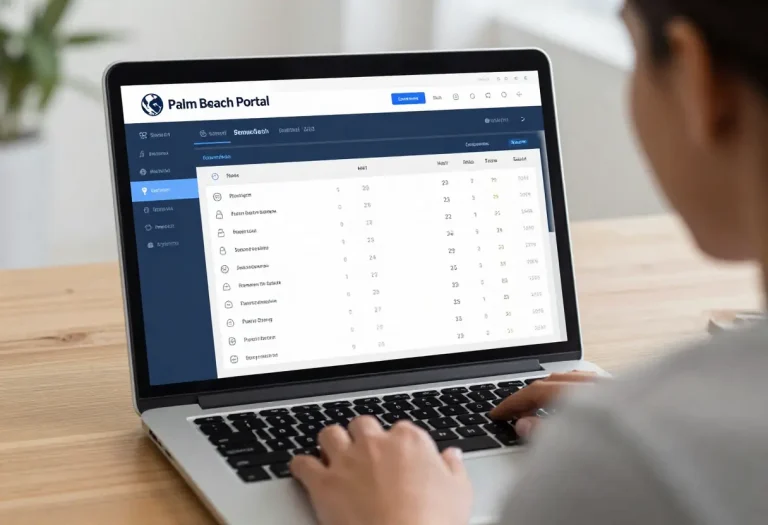
Inside the palm beach portal dashboard, the SIS system shows:
- homework
- quizzes
- tests
- projects
- completion status
- due dates
The Parent Gateway FAQ confirms that when you click a student’s grade, the gradebook displays completed and uncompleted assignments, plus the date assigned, due, and graded on the far right.
That means students can quickly spot:
- late work
- missing homework
- upcoming deadlines
- graded tasks
- excused work
A quick evening check can save a lot of last-minute stress.
Understanding Gradebook Symbols
Sometimes users get confused by symbols.
The SIS FAQ explains two common ones:
- NG = No Grade yet
- *Exc = Excused assignment
This matters because many parents panic when they see a strange code.
But often it simply means:
- teacher still grading
- assignment excused after absence
- work submitted but pending
- temporary placeholder
So no need to worry too early.
Best Daily Workflow for Students
The Palm Beach Portal works best when students check it daily.
Smart Student Routine
A simple daily system:
- check attendance in morning
- review assignments after class
- confirm due dates
- monitor grades twice a week
- email teacher if score drops
This small habit builds strong responsibility.
And honestly, it prevents the classic “I forgot there was homework.”
Best Weekly Workflow for Parents
Parents get the most value from a weekly check-in.
Recommended Parent Routine
Every Sunday:
- open parent login palm beach portal
- check attendance
- review low grades
- open missing assignments
- click teacher names if needed
The parent FAQ confirms teachers can be contacted by clicking their names directly from the homepage.
That creates faster communication and fewer surprises.
Using Palm Beach Portal Mobile Access for Quick Checks
The palm beach portal mobile access feature is great for quick updates.
Best use cases:
- check grades on the go
- review absences
- confirm homework due dates
- monitor class changes
- open alerts
For fast daily checks, mobile is excellent.
For deep grade analysis, desktop still feels better.
Common Problems When Checking Attendance, Grades, or Assignments
Sometimes users think the Palm Beach Portal is broken, but it’s usually something simple.
Missing Grades
Possible reasons:
- teacher has not graded yet
- NG status
- browser cache issue
- wrong progress period selected
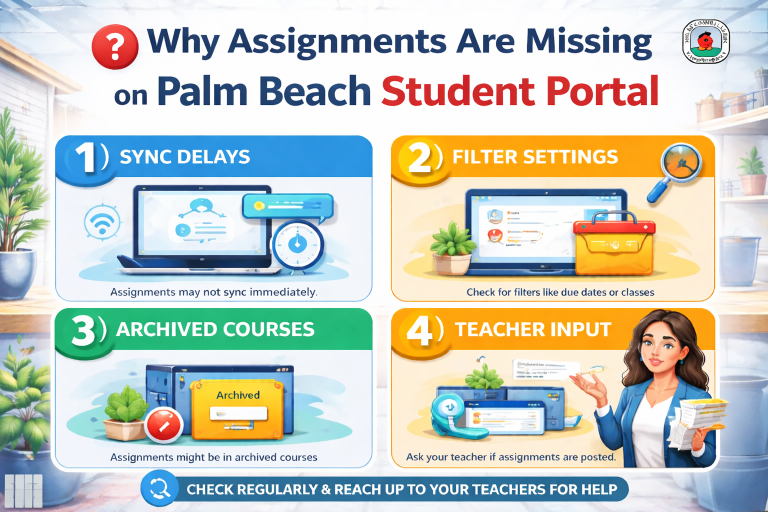
Missing Assignments
Possible reasons:
- wrong course opened
- filters active
- assignment excused
- teacher posted in another class section
Attendance Looks Wrong
Possible reasons:
- office not updated absence note
- tardy not cleared
- recent attendance sync delay
In these cases, checking again later or contacting the grade-level office usually solves it.
Why This Portal Helps Academic Performance
The biggest advantage of the Palm Beach Portal is visibility.
Students can see problems early.
Parents can respond faster.
Teachers get fewer repetitive questions.
The portal becomes more than just a login system—it becomes an academic progress tracker.
A single missed assignment today can be fixed quickly when everyone sees it early.
That’s powerful.
Conclusion
The Palm Beach Portal attendance, grades, and assignments guide is all about using the system smartly.
The best strategy is simple:
- check attendance daily
- review assignments every evening
- monitor grades weekly
- understand symbols like NG and *Exc
- contact teachers early if scores drop
When students and parents use the portal consistently, school communication improves and academic surprises become much less common.
Want the next article in this SEO series? Send the article number and I’ll write another 1000+ word Google-rankable article in the same exact style.
FAQs
How do I check attendance in Palm Beach Portal?
Log in, open the SIS Gateway tile, and click the Absences section to view tardies, excused, and unexcused days.
Where can I see assignment due dates?
Click the course grade inside SIS, and the gradebook will show assignment dates, due dates, and graded dates.
What does NG mean in Palm Beach Portal grades?
NG means No Grade, which usually means the teacher is still grading the assignment.
Can parents contact teachers from the portal?
Yes, parents can click the teacher’s name directly from the homepage and send an email.
Does Palm Beach Portal show missing assignments?
Yes, the assignments section clearly shows completed, uncompleted, and overdue work.